
TLauncher for Windows is a Minecraft launcher for users who want to manage their game setup from a Windows PC. It provides a single place to choose Minecraft versions, adjust Java settings, manage memory, and start the game. The Windows setup can also work with different Minecraft configurations, including supported mods and custom settings.
What Is TLauncher for Windows?
TLauncher for Windows is the desktop version of the launcher made for Windows computers. It works as a separate program that helps organize Minecraft installations and launch settings. Instead of changing game files by hand each time, users can manage many common options from the launcher interface. The Windows version is useful for players who switch between Minecraft versions or use different game configurations. Java, memory, game files, and selected versions can all affect how Minecraft starts. Keeping these settings organized can make the setup easier to manage.
How TLauncher Works on Windows
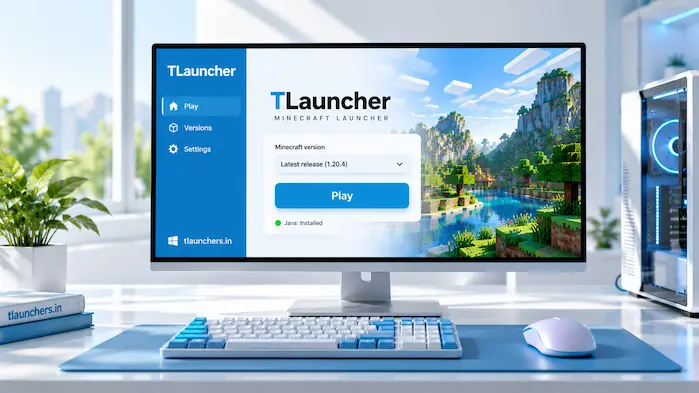
After installation, the launcher prepares the files needed for the selected Minecraft setup. You can choose a game version, review available settings, and then start the selected configuration. The launcher does not act as the Minecraft game itself. It provides a way to manage the launch process. Minecraft files, Java, system resources, and optional modifications still play a role when the game starts. A problem in any of these areas can cause an error. For example, an incompatible Java setup can prevent a game version from opening, while an incompatible mod can cause a crash after the game starts.
For a broader overview of the launcher, its features, Minecraft versions, and supported settings, visit the TLauncher homepage.
TLauncher Windows Features
The Windows version includes several options that can help users manage their Minecraft setup. The available options can vary based on the launcher and game configuration, but the main purpose remains the same: selecting a game setup and controlling the settings used to launch it.
Minecraft Version Selection
Different Minecraft releases can have different requirements. A mod may work with one release but fail with another. The same applies to some Java configurations and game settings. A version selector makes it easier to choose the Minecraft release you want to use. This is useful when testing older worlds, using a specific mod setup, or switching between different game environments.
Java Configuration
Java is an important part of Minecraft Java Edition on Windows. The Java runtime needs to match the needs of the selected game version. If Minecraft refuses to start after a Java change, check which Java installation the launcher is using. Having several Java versions on one computer can also cause confusion if the wrong path is selected.
RAM Settings
Minecraft uses system memory while running. The amount needed can change based on the game version, mods, resource packs, world size, and other settings. TLauncher provides a memory setting that can be used to control how much RAM is assigned to the game. Giving Minecraft more memory does not always improve performance. The setting should match the available RAM on the computer while leaving enough memory for Windows and other running programs.
Minecraft Mods
Mods can change the way Minecraft looks or works. They may add new blocks, items, creatures, mechanics, or other content. The important part is compatibility. A mod should match the Minecraft version and the mod loader it was designed for. Installing several unrelated mods can also create conflicts. If a setup starts crashing after a new mod is added, removing the recent change is a useful troubleshooting step.
Game Customization
A Minecraft setup can include more than the game version. Players may also use resource packs, different Java settings, memory settings, and other supported configurations. Keeping these options organized can make it easier to switch between a simple game setup and a more customized one.
TLauncher for Windows System Requirements
The requirements for running Minecraft through the launcher depend on the Minecraft version and the way the game is configured. A basic setup needs a supported Windows computer, enough storage, suitable graphics hardware, system memory, and the required Java environment. More demanding configurations can require additional resources. Large modpacks and high-resolution resource packs can increase memory and graphics usage. A computer that handles standard Minecraft well may need different settings for a heavily modified setup.
Before installing, check these basic areas:
These checks can prevent simple setup problems later.
How to Install TLauncher on Windows
Installing the launcher on Windows starts with obtaining the correct installer. After the installer is available, open it and follow the setup instructions shown on screen. Once the installation finishes, launch the program and review its settings. Check the Java configuration before starting a demanding Minecraft setup. It is also useful to make sure the computer has enough free storage for game files and additional content. Do not replace the installer with files from unknown sources when troubleshooting. Using an unverified copy can create problems that are unrelated to the original installation.
Download the Windows Installer
Choose the installer intended for Windows rather than a package designed for another operating system. Keep the downloaded file in an easy-to-find location until the setup is complete. If the file does not open, check whether the download finished correctly. A damaged or incomplete installer may need to be obtained again from a trusted source.
Run the Setup
Open the installer and follow each step. Read the options shown during installation instead of accepting unfamiliar changes without checking them. After setup, open the launcher from its installed location or Windows shortcut. If it does not start, you may need to check Java, permissions, security software, or damaged files.
Configure Java
Java settings become important when launching Minecraft Java Edition. Check the Java path and runtime selected by the launcher if the game fails to start. Avoid changing Java settings without a reason. If the current configuration works with your selected Minecraft version, there is no need to change it.
Start Minecraft
Choose the required Minecraft version and review the available settings. Make sure your selected Java and memory options are suitable for the setup. Start the game and allow the launcher to complete any required file preparation. The first launch can take longer when files need to be prepared.
If you need the complete installer and installation process, follow the TLauncher Download guide for the required steps.
TLauncher for Windows 10
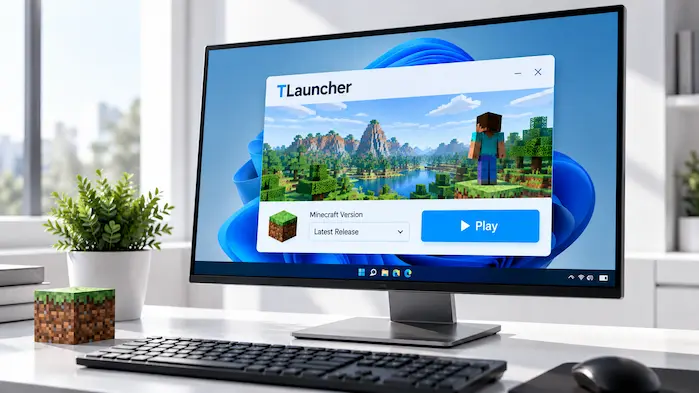
TLauncher for Windows can be used on Windows 10 systems that meet the requirements of the launcher and Minecraft setup. Performance will depend on the computer rather than the operating system alone. If the launcher works but Minecraft runs poorly, check RAM usage, graphics settings, background applications, and installed mods. A lower game setting can help on computers with limited hardware. Windows updates and graphics driver updates can also affect game behavior. When troubleshooting, check recent system changes before assuming the launcher is the cause.
TLauncher for Windows 11
TLauncher for Windows can also be used on Windows 11 when the computer and required software support the selected Minecraft setup. Windows 11 can have different security, permission, and graphics settings from an older Windows installation. If an application does not open, check whether Windows has blocked the file or whether the program has access to the folders it needs. Minecraft performance still depends on hardware, Java, game settings, and optional modifications. Moving from Windows 10 to Windows 11 does not automatically make Minecraft faster or slower on every computer.
TLauncher Windows Java Settings
Java settings should match the Minecraft environment being launched. Older and newer Minecraft releases can have different Java requirements, so one Java configuration may not suit every setup. If the game shows a Java-related error, check the selected runtime before changing other settings. A common mistake is selecting a Java installation that is not compatible with the chosen game version. When several Java installations are present, note their locations and versions. This makes it easier to identify which runtime the launcher is using.
TLauncher for Windows Performance
Performance depends on several parts of the computer. The processor, graphics hardware, RAM, storage, Java setup, Minecraft settings, and mods can all affect the result. A simple Minecraft installation usually places less demand on the system than a large modpack. Resource packs with high-resolution textures can also increase graphics and memory use.
RAM Allocation
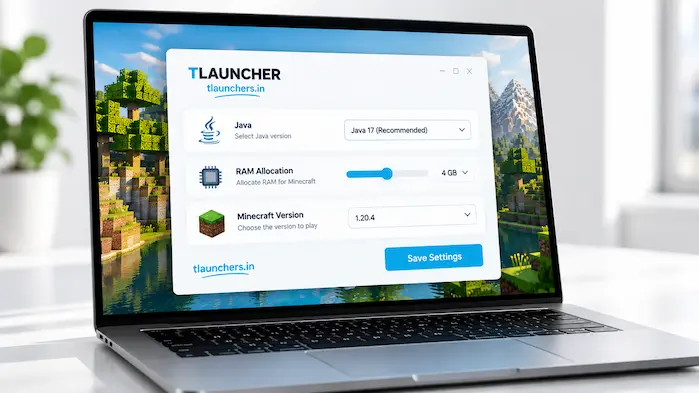
Giving Minecraft access to more RAM can help some larger setups, but more is not always better. Windows needs memory for its own tasks, and other programs also use system RAM. If Minecraft becomes unstable after increasing the allocation, try a lower value. The correct setting depends on the total memory installed and the requirements of the game configuration.
Graphics Settings
Graphics settings have a direct effect on rendering. Render distance, simulation distance, particles, graphics quality, and other options can increase the workload on the computer. If the game feels slow, reduce demanding settings one at a time. This makes it easier to identify which option has the biggest effect.
Minecraft Version Compatibility
A Minecraft setup can perform differently across versions. Older versions may use different Java environments, while newer versions can have different resource needs. Mods add another compatibility layer. Before installing a mod, check the Minecraft version and loader it supports. Mixing versions can result in crashes or missing features.
TLauncher Windows Problems
Problems can happen during installation, startup, gameplay, or multiplayer. The cause is not always the launcher itself. Windows settings, Java, Minecraft files, drivers, mods, and network access can all be involved. Start with the simplest checks before making major changes. Confirm the selected Minecraft version, check Java, review recent modifications, and restart the computer.
Launcher Does Not Open
If the launcher does not open, check whether the installation completed correctly. A damaged installer or missing component can prevent startup. Windows security settings can also affect an application. Check any warning shown by Windows before deciding whether the file should be allowed to run.
Minecraft Does Not Start
When the launcher opens but Minecraft does not, Java is one of the first areas to check. The selected version can also be incompatible with a mod or configuration. Try starting a clean setup without newly added modifications. If the clean setup works, the problem may be linked to the custom configuration.
Java Errors
Java errors can appear when the wrong runtime is selected or when the installed environment does not match the Minecraft release. Check the Java configuration first. Avoid installing several different Java versions at random because this can make the selected runtime harder to identify.
Game Crashes
A crash can have many causes. Mods, resource packs, graphics drivers, memory settings, and corrupted game files can all contribute. Think about what changed before the crash started. If you added a mod or changed a setting, temporarily reversing that change can help locate the problem.
Installation Problems
If the installer fails, check the downloaded file and available storage. Windows permissions can also affect where an application can create files. A fresh installer from a trusted source may be needed if the original file is incomplete. Avoid using modified installers as a troubleshooting method.
TLauncher for Windows Multiplayer
The Windows launcher can start Minecraft configurations that support multiplayer. Connecting to a server still depends on the server’s requirements and the Minecraft version being used. A server may require a specific version or setup. If the client and server use incompatible versions, the connection can fail even when the server address is correct. Network restrictions can also cause connection problems. Check the internet connection and the server status before changing game files or Java settings.
TLauncher for Windows Safety
Safety starts with the source of the installer. Users should obtain software from a source they trust and avoid modified copies from unknown websites. A Windows security warning should not be ignored without checking why it appeared. Review the file source and scan suspicious files rather than disabling security features as a first step. Keep Windows, graphics drivers, and Java components maintained. Strong account passwords and careful handling of downloaded files can also reduce common security risks.
Frequently Asked Questions
Does TLauncher work on Windows 10?
It can be used on compatible Windows 10 computers. The actual experience depends on the computer hardware, Java setup, Minecraft version, and other installed components.
Does TLauncher work on Windows 11?
It can run on compatible Windows 11 systems. If problems occur, check Java, Windows permissions, drivers, and the selected game configuration.
Does TLauncher need Java?
Minecraft Java Edition depends on Java. The launcher also needs a suitable Java environment to start supported game configurations.
Why does Minecraft not start?
Check Java, the selected game version, available memory, graphics drivers, and recently added mods. One incompatible component can stop the game from launching.
How much RAM does Minecraft need?
The amount depends on the game setup. A simple installation needs less memory than a large modpack or high-resolution resource pack.
Can I use mods on Windows?
Yes, supported Minecraft configurations can use mods. Always match the mod with the correct game version and required loader.
Why does the launcher close after opening?
Possible causes include Java problems, damaged files, Windows security restrictions, or an incorrect configuration. Checking each area can help find the cause.
Conclusion
TLauncher for Windows provides a way to manage Minecraft versions, Java settings, memory, mods, and launch configurations from a Windows PC. The best setup depends on the Minecraft version and the computer being used. Keeping Java compatible, using suitable memory settings, and checking modifications can prevent many common problems.