
TLauncher for PC is a Minecraft launcher for desktop computers that helps users manage game versions, Java settings, memory, and other launch options. You can use it on supported Windows, macOS, and Linux systems, but the setup varies by operating system.
What Is TLauncher for PC?
TLauncher for PC is a desktop launcher that helps users organize and start Minecraft on a computer. It gives users a central interface for choosing a game version and adjusting settings before launching the game. A PC setup can also include mods, resource packs, and different Java configurations. Each of these can affect how Minecraft runs, so keeping the setup organized can make troubleshooting easier.
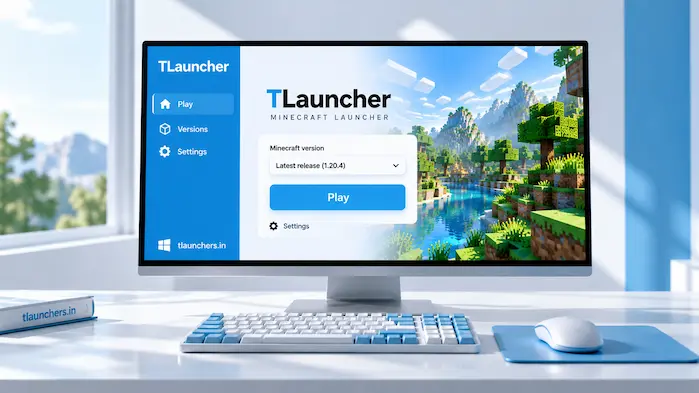
How TLauncher Works on a PC
The launcher works as a layer between the user and the Minecraft installation. You select a game configuration, review the available settings, and start the selected version from the launcher. The exact process can differ between Windows, macOS, and Linux. File locations, permissions, Java installation, and system settings are not the same on every platform. The computer still provides the hardware resources needed by Minecraft. The launcher does not replace the processor, graphics hardware, RAM, or operating system.
For an overview of the launcher, Minecraft versions, features, skins, Java settings, and multiplayer options, visit the TLauncher homepage.
TLauncher PC Features
A PC launcher needs to handle more than starting a game. Different Minecraft versions may need different settings, while mods can add another level of configuration.
Minecraft Version Selection
Minecraft has many releases, and players may need a specific version for a world, mod, or server. A version selector makes it easier to choose the required release before starting the game. Version compatibility is important when using modifications. A mod created for one release may not work with another. Selecting the correct version first can prevent some common errors.
Java Settings
Minecraft Java Edition depends on a suitable Java environment. The required setup can vary between Minecraft releases. If Minecraft does not start after changing Java, check the selected runtime and its location. Installing several Java versions without knowing which one the launcher uses can make troubleshooting harder.
RAM Management
Minecraft uses RAM while running. The game version and setup type determine the amount required. A simple installation may need less memory than a large modpack. Assigning all available RAM to Minecraft is also not a good idea because the operating system and other applications need memory too.
Mods and Game Configurations
Mods can add new gameplay systems, items, blocks, worlds, or visual changes. They also introduce compatibility requirements. Before adding a mod, check its Minecraft version and required loader. If a setup starts crashing after adding new content, remove the latest change and test the game again.
Multiplayer Support
You can use Minecraft for multiplayer when the selected game setup supports the required server connection. The client and server may need to use compatible versions. Connection problems can come from the server, network, game version, account requirements, or local settings. A correct server address alone does not guarantee a successful connection.
TLauncher PC System Requirements
The Minecraft version and game configuration determine the required hardware. A basic setup needs a compatible desktop operating system, enough RAM, free storage, suitable graphics hardware, and the required Java environment. Modpacks and high-resolution resource packs can increase resource usage. Players with limited hardware may need lower graphics settings and shorter render distances.
Before setting up the launcher, check:
These factors can affect installation, startup, and gameplay.
TLauncher for Windows PC
Windows is one of the main desktop environments that users use for Minecraft.A Windows PC can provide different hardware configurations, from basic laptops to high-performance gaming computers. The launcher settings remain important on both types of systems. A powerful computer can still experience crashes if the Java environment, Minecraft version, or installed mods are incompatible.
TLauncher for macOS
macOS has its own file structure, permissions, security settings, and hardware configurations. These differences mean that you should not always apply instructions written for Windows to a Mac. Before starting Minecraft, check that the Java environment and selected game configuration are suitable for the macOS setup. Security controls may also affect applications downloaded from outside the Mac App Store. Performance can vary between Mac models because Apple computers use different processors and graphics hardware across generations.
TLauncher for Linux
Linux users have more variation in their system setup because different distributions can use different package managers, desktop environments, and system configurations. Java installation and file permissions are two areas worth checking when setting up Minecraft. The selected Minecraft version and installed mods can add further requirements. If the launcher starts but Minecraft does not, check Java first. Then review the selected game version and any custom modifications.
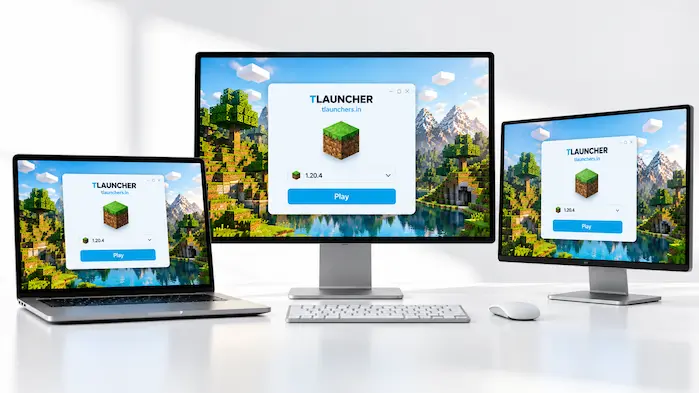
How to Install TLauncher on PC
Installing the launcher starts with obtaining the appropriate installer for your operating system. Windows, macOS, and Linux may use different installation methods, so the correct package should be selected. After installation, open the launcher and review the available settings. Check the selected Minecraft version and Java configuration before starting the game. Keep enough free storage available for Minecraft files and additional content. A lack of storage can cause installation or game-launch problems.
Get the Installer
Choose the installer that matches the operating system on your PC. Do not use a package intended for another platform. A trusted source should be used when obtaining software. Avoid modified installers from unknown websites because changes to an installer can create problems that are difficult to trace.
Run the Installation
Open the installer and follow the setup instructions. Review the options shown during the process instead of accepting unfamiliar changes without checking them. If the installer fails, check available storage, file integrity, system permissions, and security software. A damaged installer may also need to be replaced.
Configure the Launcher
Once the installation is complete, open the launcher and select the required Minecraft version. Review Java and memory settings before starting the game. Do not change several settings at the same time when troubleshooting. Making one change at a time makes it easier to find the cause of a problem.
Start Minecraft
After selecting the required configuration, start Minecraft through the launcher. The first launch may take longer because the required files may need to be prepared. If the game does not start, check Java, the selected version, memory allocation, and recent modifications before making major changes.
If you are looking for the installation process and installer details, see the TLauncher Download guide.
TLauncher PC Java Setup
Java is one of the main components of a Minecraft Java Edition setup. Different Minecraft versions can require different Java environments. A Java problem can appear as a startup error, crash, or failure to load a game version. Check which runtime is selected before installing another Java version. When several Java installations exist on the same computer, make sure the launcher is using the intended one. This is especially useful when switching between older and newer Minecraft releases.
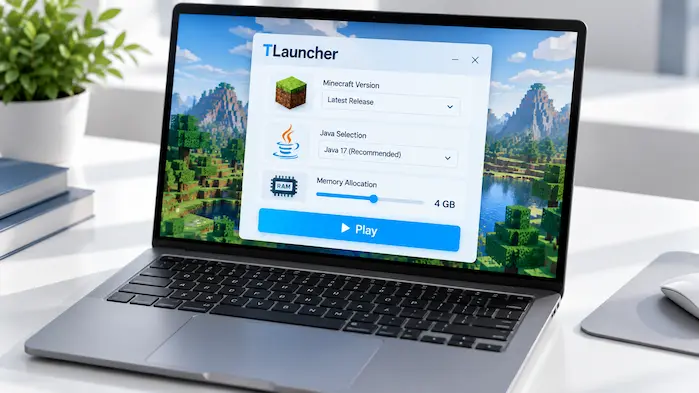
TLauncher PC Performance
Performance depends on the entire computer and the selected Minecraft configuration. The processor, graphics hardware, RAM, storage, Java environment, game version, and mods can all affect performance. A clean game installation usually places less demand on the system than a large modpack. Resource packs can also increase graphics and memory usage.
RAM Allocation
RAM should be assigned based on the needs of the selected setup. Giving Minecraft more memory does not guarantee better performance. Leave enough memory for the operating system and other applications. If the game becomes less stable after increasing the allocation, test a lower value.
Graphics Settings
Graphics settings can have a large effect on frame rate. Render distance, simulation distance, particles, and visual quality can increase the workload on the computer. Lowering demanding settings can help systems with limited hardware. Change one setting at a time so you can see which option affects performance.
Storage Space
Minecraft needs storage for game files, worlds, logs, mods, and other content. A nearly full drive can cause problems when new files need to be created. Keep some free space available instead of filling the drive to its limit. This also gives Windows or another operating system room for normal background tasks.
TLauncher PC Problems
Problems can appear during installation, startup, gameplay, or multiplayer. The cause may be the launcher, Java, Minecraft files, hardware, drivers, network, or an installed modification. Start with basic checks. Confirm the game version, review Java, check available storage, and consider any recent changes to the setup.
Launcher Does Not Open
If the launcher does not open, check whether the installation completed correctly. A damaged installer or blocked application can prevent startup. Security software and operating system permissions can also affect an application. Review any warning shown by the operating system before changing security settings.
Minecraft Does Not Start
When the launcher opens but Minecraft does not, check the selected Java environment and game version. A clean game setup can help isolate the problem. If a clean configuration starts but a modified one does not, the issue may be related to a mod or another custom setting.
Java Problems
Java errors can result from an incompatible runtime or incorrect Java path. They can also appear when several installations are present and the wrong one is selected. Check the runtime before changing other parts of the setup. A matching Java environment can resolve some startup issues without further changes.
Installation Errors
Installation failures can be caused by an incomplete installer, insufficient storage, permissions, or operating system restrictions. Check the installer and storage first. If the file appears damaged, obtain a fresh copy from a trusted source instead of using a modified package.
Game Crashes
Crashes can happen after adding mods, changing Java, increasing memory, or switching Minecraft versions. Think about what changed before the crash appeared. Reversing the latest change and testing again can help narrow down the cause.
TLauncher PC Multiplayer
A PC installation can connect to Minecraft multiplayer servers when the required setup is supported. Server compatibility can depend on the game version, server configuration, account requirements, and network connection. If a connection fails, check the server address and required Minecraft version first. A server may reject a client running a different version. Network restrictions can also affect multiplayer. Check the local connection and server status before changing Java or reinstalling the launcher.
TLauncher PC Safety
Software safety starts with the source of the installer. Use a trusted source and avoid modified files from unknown websites. Do not disable security software as the first response to a warning. Check why the warning appeared and verify the file before deciding whether it should be opened. The same approach applies to mods and other Minecraft files. Third-party content can introduce risks, so its source matters.
Frequently Asked Questions
What is TLauncher for PC?
It is a desktop Minecraft launcher that helps users manage game versions, Java settings, memory, and launch configurations on a computer.
Does TLauncher work on Windows?
A compatible Windows PC can use the launcher. The exact setup depends on the Windows version, hardware, Java environment, and Minecraft configuration.
Can TLauncher run on macOS?
The launcher can be used on supported macOS systems, but installation and system settings differ from Windows.
Can TLauncher run on Linux?
Supported Linux setups can run the launcher. Java, permissions, and distribution-specific settings may affect installation and gameplay.
Does TLauncher need Java?
Minecraft Java Edition requires a suitable Java environment. The correct setup depends on the Minecraft version being launched.
How much RAM does Minecraft need?
Memory needs vary. A basic game setup requires less RAM than a large modpack or resource-heavy configuration.
Can I use mods on PC?
Supported Minecraft setups can use mods. The mod, game version, and required loader must be compatible.
Conclusion
TLauncher for PC provides a desktop way to manage Minecraft versions, Java settings, memory, and game configurations. Windows, macOS, and Linux each have different system requirements and setup details. Keeping the Java environment compatible, leaving enough storage and RAM, and checking mods before installation can help maintain a stable Minecraft setup.