
Is TLauncher safe is a common question for Minecraft players who are thinking about installing the launcher on their computer. Several factors determine the answer, such as where the installer comes from, what files it adds later, and how it handles account information. Instead of relying on a simple yes or no, it is better to understand the main security points before using any launcher.
What Does TLauncher Safety Mean?
Safety covers more than whether an application contains malware. It also includes the source of the installer, the files added to the game, account protection, privacy, and the permissions given to software. Two files with the same name may not be the same file. Someone could have changed a copy from an unknown website before uploading it. This is why the source matters when checking any software.
To understand the launcher itself, its main features, Minecraft versions, Java settings, and other core functions, visit the TLauncher homepage.
Is TLauncher Safe to Use?
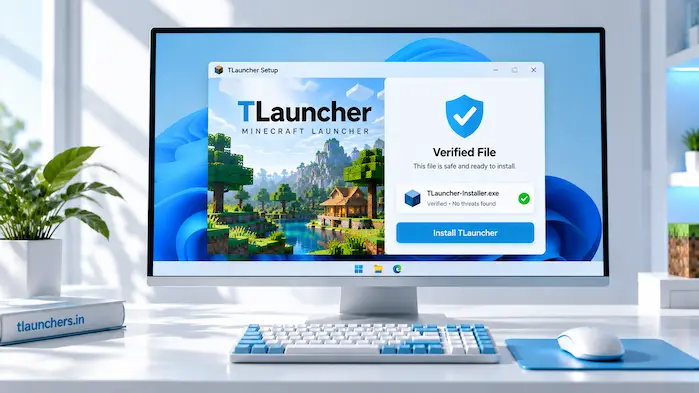
Is TLauncher safe to use depends on how you obtain and use it. Start with a trusted source and avoid installers that unknown parties have repacked or modified. Your own actions also matter. Installing random files, using weak passwords, or ignoring security warnings can create risks with almost any software. A careful setup reduces these problems. It is also useful to keep your operating system and security software up to date. This gives your computer a better chance of detecting suspicious files or activity.
Is TLauncher a Virus?
You cannot answer the question “Is TLauncher a virus?” by looking at the application name alone. A virus is malicious software that performs harmful actions, while a launcher is an application that starts and manages a game. The important question is which file you have. If an installer comes from an unknown website, there is no good reason to assume that it matches the original software. A security scan can provide more information about a particular file. If a warning appears, check the file source and detection details before deciding what to do.
Why Do Users Ask About TLauncher Safety?
Many users see security warnings, read different claims online, or find several websites offering files with the same name. This can make it difficult to tell which information applies to the software they are using. Minecraft also supports mods, resource packs, launch configurations, and third-party servers. These additions create more files on the computer. You should check each extra file because it becomes another part of the setup. The safest approach is to look at the complete setup rather than judging everything by the launcher name.
Where You Get the Installer Matters
The first security check should be the download source. A website using the product name does not automatically mean that it is an official distributor. Avoid installers that have been repacked by unknown websites. Modified software can contain changes that are not present in the original application. Pay attention to unusual download pages, unexpected redirects, and installers that ask for unrelated software. If something about the download process looks out of place, stop and verify the source before continuing.
If you are looking for the installation process, see the TLauncher Download guide for the steps involved in setting up the launcher.
How to Check a TLauncher File
Checking a file before opening it is a simple habit that can reduce avoidable risks. You do not need advanced technical skills to perform some basic checks.
Check the File Source
Look at the domain where the installer came from. Do not rely only on the name shown in a search result or on a download button. The official TLauncher website identifies tlauncher.org as its official domain and warns users about fake websites and modified copies. This makes the source an important part of the verification process. If you already have an installer from another website, do not assume that it is genuine. Compare its source and file details before running it.
Scan the Installer
A security scan can help identify known threats in a downloaded file. Keep your security software updated so that it has current detection information. A warning does not explain everything by itself. Look at the exact file that was flagged and the reason given by the security tool. If you are unsure about a file, do not rush to disable protection just to install it. Investigate the warning first.
Check Windows Security Details
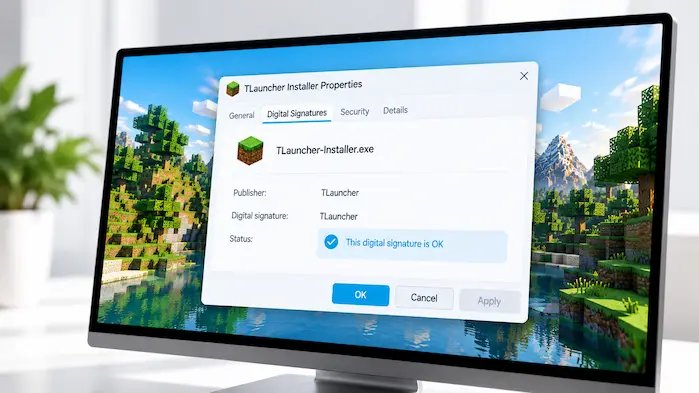
Windows provides file and application security information that can help users review downloaded programs. The file’s properties can also provide useful details. Check the publisher information, file type, location, and any available digital signature. These details do not replace a complete security check, but they can help identify an unusual file. A missing or unexpected publisher signature should be treated as a reason to investigate further rather than ignored.
Is TLauncher Safe for PC?
Is TLauncher safe for PC depends on the installer and the rest of the computer setup. Windows users should pay attention to where the file came from and how Windows responds when the program is opened. Keep Windows security features enabled unless there is a specific reason to change them. If Windows displays a warning, read the message before choosing an option. It is also useful to keep important Minecraft worlds backed up. Security problems are not the only concern. A damaged installation or bad modification can also affect game files.
Is TLauncher Safe for Mac?
Is TLauncher safe for Mac should be considered in the same way as any other software installation. The source of the application is important, and macOS security warnings should not be ignored without checking them. Mac users should also consider the Java environment and any third-party Minecraft files they install. A problem may come from an added file rather than the launcher itself. If an application asks for permissions that do not make sense for its purpose, review those permissions before allowing access.
TLauncher and Account Security
Your Minecraft account and email account deserve separate attention. A secure launcher setup cannot protect your account if you share your password or enter it on an untrusted website. Never give your password to anyone who claims they need it to activate a feature. Be careful with websites that imitate login pages or promise special access in exchange for account details. Use a strong password that you do not reuse on unrelated websites. If your account provider offers additional login protection, enable it.
Protect Your Login Details
Keep your login information private. Do not save your password in random text files, screenshots, or messages that other people can access. Avoid using the same password for your email and gaming accounts. If one service is compromised, reused credentials can put the other account at risk.
Avoid Unofficial Login Pages
A login page should be checked before entering your credentials. Look at the domain and make sure it belongs to the service you expect. Do not enter account details into a page simply because it uses familiar logos or colors. Fake login pages can be designed to look convincing.
TLauncher and Privacy
Privacy is different from malware protection. An application can collect technical information without being a virus, so users should consider what information a service handles. Technical data can include things such as operating system details, hardware information, error reports, or application settings. The exact data depends on the software and its current privacy practices. Read the current privacy information provided by the service if data collection is a concern. Privacy policies can change, so older information may not describe current practices.
Are TLauncher Mods Safe?
Are TLauncher mods safe is a separate question from the safety of the launcher itself. Mods are created by third parties, and their quality and source can vary. Only install mods from sources you trust. Check that the file matches your Minecraft version and required mod loader. Be careful with files that come with unrelated installers or ask you to run extra programs. A Minecraft mod should not need unexplained software to perform its normal function. Keep a backup of important worlds before installing a large group of mods. This protects your saved data if a modification causes a crash or file problem.
Are TLauncher Servers Safe?
Servers can also introduce separate risks. Joining a server does not mean that every website connected to that server is trustworthy. Do not download unknown programs simply because a server administrator or another player tells you to. Be cautious with links shared through chats, forums, and unofficial communities. Never share account passwords with server staff. A legitimate server should not need your private account password just because you want to play.
What to Do When Antivirus Shows a Warning
An antivirus warning should be investigated rather than ignored. First, identify the exact file that was detected and where it came from. Check whether the file was obtained from a trusted source. Then review the detection name and any information provided by the security software. If you cannot verify the file, do not run it. Remove it and obtain the software again from a source you trust. This is a safer approach than turning off antivirus protection to force an installation.
Common Safety Mistakes to Avoid
Some risks come from simple mistakes rather than advanced attacks. Avoid downloading installers from random file-sharing pages just because they appear in search results. Do not use modified launchers without knowing who changed them. Avoid suspicious login pages, unknown mods, and programs that ask for unrelated permissions. Another common mistake is ignoring security warnings because the software is popular. Popular software can still be copied, modified, or distributed through unsafe websites.
How to Use TLauncher More Safely
Start with a trustworthy installer and keep the file source in mind. Scan unfamiliar files before opening them and pay attention to warnings from Windows, macOS, or your security software. Keep your operating system and security tools updated. Use strong account passwords and avoid sharing login information with websites, servers, or other people. Treat mods, resource packs, and third-party tools as separate software. Check their sources before adding them to your Minecraft setup. There is no need to make a complicated security routine. Basic checks at each stage can prevent many common problems.
Frequently Asked Questions
Is TLauncher safe to use?
Safety depends on the file source, installation, account practices, and additional files used with the launcher. Verify these parts before running the software.
Is TLauncher a virus?
The application name alone does not establish whether a particular file is malicious. Check the exact file, its source, and the results from your security software.
Does TLauncher have a virus?
Different copies can come from different sources. A file from an unknown website should be checked before it is opened.
Is TLauncher safe for PC?
Windows users should verify the installer source, review security warnings, and keep system protection enabled while using the software.
Is TLauncher safe for Mac?
Mac users should check the application source, review macOS security warnings, and be careful with third-party Minecraft files.
Can TLauncher steal passwords?
Do not assume that any application can or cannot access sensitive information without checking its current behavior and privacy documentation. Protect your passwords and avoid unofficial login pages.
Should I scan the installer?
Yes. Scanning an unfamiliar installer is a simple extra check before opening it, especially when the file came from a source you do not know well.
Conclusion
Is TLauncher safe depends on more than the launcher name. The download source, installer, security settings, account practices, mods, and other third-party files all matter. Verify the software before opening it, keep your security tools active, protect your login details, and avoid files that you cannot identify. These basic steps can make a Minecraft launcher setup more controlled and easier to trust.